
Installation
Minimal system requirements are:
PC with Pentium III 800 MHz processor
128 MB RAM
Operating system of type Windows 95/98/ME, Windows NT 4.0, Windows 2000 or Windows XP.
High resolution analog or FireWire video camera, colour camera for morphological analysis
Image processing board Matrox Meteor II or PC with FireWire interface
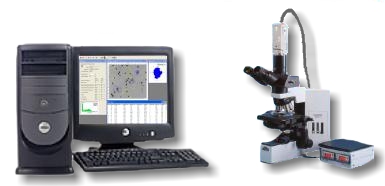
Hardware installation
Connect the video-cable to the BNC connection socket of the Matrox Meteor II situated in the computer and connect the other end of the video-cable to the “Video” labelled BNC socket of the camera.
Connect the 12 V DC output of Power Supply Unit to the “DC12” labelled socket of the camera. Take care of the polarity of the cable!
Connect the Power Supply Unit to the mains (220 V/AC).
Important information:
No matter if the camera is switched on or off, never aim at the sun or other extremely bright objects. Otherwise blooming or smear may be caused.
Clean the CCD faceplate carefully. Do not clean the CCD with strong or abrasive detergents. Use lens tissue or a cotton tipped applicator and ethanol.
Program installation
To install the medeaLAB Software use the installation CD and start the program setup.exe. Choose Typical setup and follow the instructions. To install the software under Windows NT or Windows 2000, administrator rights are essential.
Check the ODBC database interface running on your Windows system. A current version of the ODBC database interface installation program is available on the installation CD in the subdirectory „MDAC“.
Installation of the CASA database
Follow these steps to create the MS Access ODBC data source for medeaLAB CASA:
(1) Run the ODBC Data Source Administrator application from the Windows Control Panel: Performance and Maintenance > Administrative Tools > Data Sources (ODBC) > System DSN
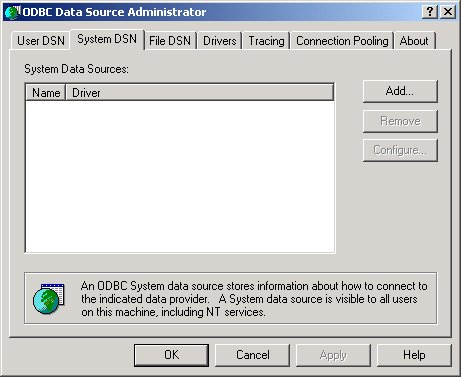
(2) Click the Add button on the System DSN page to open the Create New Data Source dialog box.
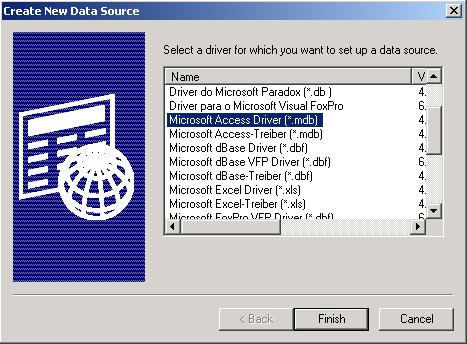
(3) Select the Microsoft Access Driver (*.mdb) driver from the list and click the Finish button to open the ODBC Microsoft Access Setup dialog box.
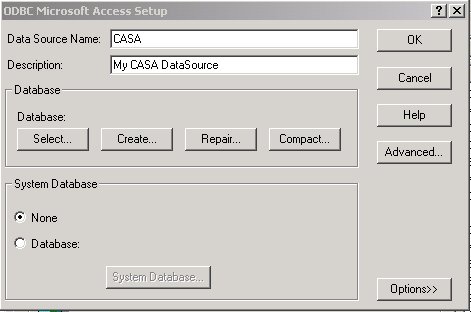
(4) Enter the Data Source Name "CASA" and a optional description . Click the Select button to open the Select Database dialog box.
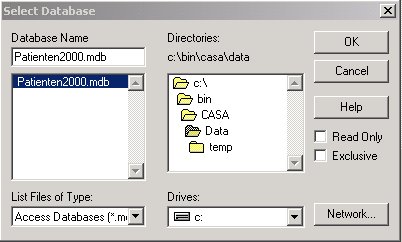
( 5) Select the directory for the MS Access database (patienten2000.mdb or Patienten2003.mdb) and press OK.
(6) In the ODBC Microsoft Access Setup dialog box press OK
(7) In the ODBC Data Source Administrator dialog box press OK
